


 119
119
Overview
The PrivadoVPN MCP server allows you to connect PrivadoVPN directly to your AI developer tools using the Model Context Protocol (MCP). This local integration enables your AI assistant to programmatically interact with your VPN connection via natural language or API calls - managing connections, switching servers, changing protocols, and performing diagnostics without needing to manually use the PrivadoVPN app.
The MCP server is implemented as a local HTTP API embedded within the PrivadoVPN client and is designed for advanced users, developers, and automation workflows.
Requirements
- An MCP-compatible AI client that supports HTTP-based MCP servers
- The MCP Server is included in the PrivadoVPN app for Windows and macOS
How to activate PrivadoVPN MCP Server
-
Open the PrivadoVPN application.
-
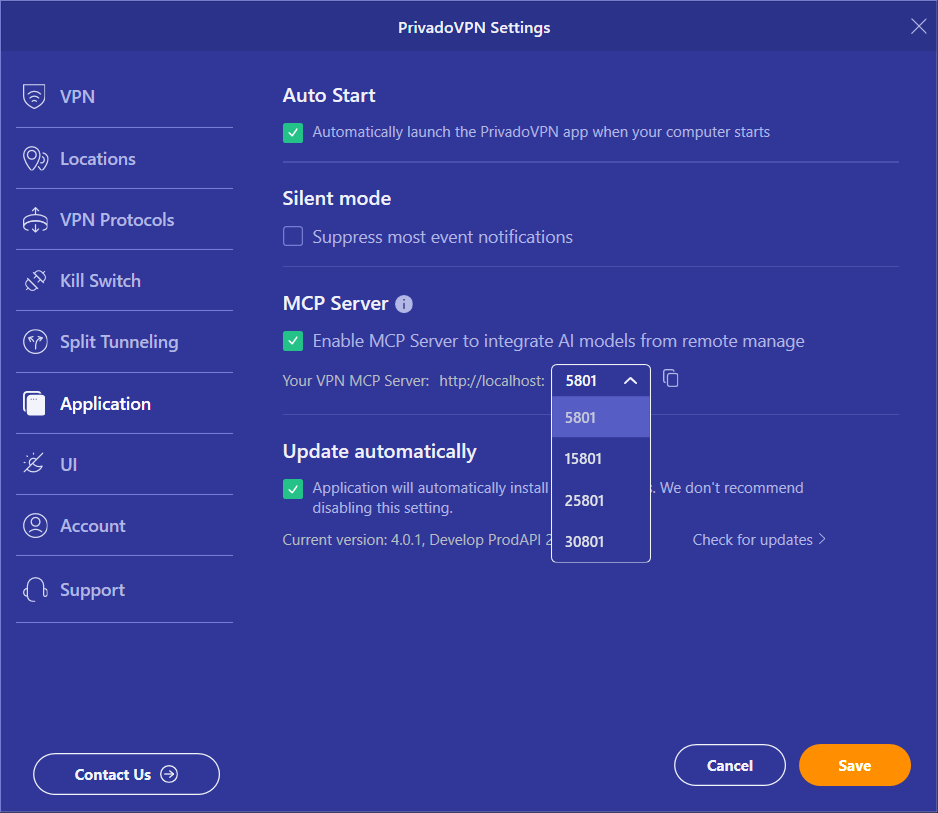
Navigate to Settings → Application.
-
Enable the MCP Server option (note the port assigned - default is 5801).
-
Click Save.
Once done, the MCP server runs locally in the background.
How it works
The MCP Server is a local component that enables secure communication between external applications or scripts and the PrivadoVPN client. It acts as a control layer, allowing commands to be sent to the VPN client and structured responses to be returned.
Architecture
The MCP Server runs exclusively on the local machine where the PrivadoVPN client is installed. It functions as a secure HTTP server and listens for GET requests on a predefined port, 5801 by default. Access is restricted to localhost (127.0.0.1) only, preventing any unauthorized remote control of the VPN client.
Interaction Flow
External applications or scripts send commands to the MCP Server, which processes them, interfaces with the core VPN client, and returns the appropriate response. This ensures that all operations are handled locally and securely while providing structured feedback to the calling application or script.
Workflow Overview
The interaction sequence is as follows:
Application/Script → MCP Server → VPN Core → Response. This setup allows the MCP Server to act as a safe and reliable intermediary, enabling third-party tools to control PrivadoVPN sessions without exposing the client to remote access risks.
Integration Examples
The default MCP server endpoint (If your application shows a different port, replace 5801 accordingly):
http://127.0.0.1:5801/mcpClaude Code
Open your system terminal and run the following command:
claude mcp add --transport http privado-vpn http://127.0.0.1:5801/mcp
Codex
For Codex, update its MCP configuration file (Settings → MCP) by adding the following JSON snippet to register the PrivadoVPN MCP server as an available service:
{
  "mcpServers": {
    "privado-vpn": {
      "url": "http://127.0.0.1:5801/mcp"
    }
  }
}
Cursor
Open Settings → Tools & MCP, click + Add custom MCP.
Enter the following JSON configuration and save it to enable communication with the PrivadoVPN MCP Server:
{
  "mcpServers": {
    "privado-vpn": {
      "url": "http://127.0.0.1:5801/mcp",
      "headers": {}
    }
  }
}
LM Studio
-
Open LM Studio.
-
In the right sidebar, navigate to the Integrations tab.
-
Click Install, then choose Edit mcp.json.
-
Enter the configuration below into the mcp.json file and save it.
{
  "mcpServers": {
    "privado-vpn": {
      "url": "http://127.0.0.1:5801"
    }
  }
}
VS Code
VS Code provides two ways to configure MCP servers:
1. Manual Configuration:
- Workspace-specific: Create or open
.vscode/mcp.jsonin the root of your project (this method is suitable for sharing configurations with your team via source control). - UserProfile: Open the Command Palette (
⇧⌘Pon Mac orCtrl+Shift+Pon Windows) and search for MCP: Open User Configuration to edit the globalmcp.jsonfile.
2. Guided Configuration:
-
Open the Command Palette (
⇧⌘Pon Mac orCtrl+Shift+Pon Windows). -
Run MCP: Add Server.
-
Follow the prompts to add a new server, choosing whether it applies to the current Workspace or Global User Profile.
Add the Configuration
1. Insert the following JSON into the mcp.json file (the type field is required):
{
  "servers": {
    "privado-vpn": {
      "type": "http",
      "url": "http://127.0.0.1:5801"
    }
  }
}
2. Save the file to apply the configuration.
Available tools
After enabling MCP, your AI assistant can directly control and inspect your VPN state.
The tools below expose core PrivadoVPN functionality through a simple HTTP interface.
|
TOOL |
DESCRIPTION |
|
Diagnostics |
|
| echo [message] |
Verifies MCP server availability. Returns the same message sent. |
| ping [hostname_or_ip] |
Performs a network connectivity test to a specified host or IP. |
|
Connection Management |
|
| vpn_connect [city] |
Connects to PrivadoVPN. Without [city], uses the current or optimal location. |
| vpn_disconnect |
Disconnects from PrivadoVPN. |
|
Status & Information |
|
| vpn_get_status |
Returns a full real-time status report including connection state, IP address, geolocation, username, app version, and feature states (Kill Switch, Control Tower, Split Tunneling\Smart Route). |
|
Server Listing |
|
| vpn_list_servers | Returns a list of all available VPN server locations. |
|
Protocol Management |
|
| vpn_set_protocol [protocol] |
Sets or retrieves VPN protocols. If no protocol is specified, it returns a list of all available protocol options. Changes take effect on the next connection or immediately if possible. Supported protocols:
|
|
Security Controls |
|
| vpn_toggle_kill_switch |
Enables or disables Kill Switch, blocking internet traffic if the VPN disconnects. |
Use cases
The PrivadoVPN MCP server enables automation and AI-driven workflows directly inside development environments.
Automation Capabilities:
- Connect or disconnect the VPN quickly and easily.
- Switch server locations for testing or accessing region-specific content.
- View real-time VPN status and connection details.
- Automatically switch protocols for better performance.
- Enforce security features like the Kill Switch.
- Control VPN via AI agents, scripts, or voice/text commands.
- Let AI automatically manage locations, protocols, and troubleshooting.
Technical benefits
-
Local-only access: MCP server is bound to 127.0.0.1
-
Standard HTTP API: Easy integration with any language or tool
-
Real-time synchronization: Changes reflect instantly in the GUI
-
Granular control: Direct access to connection, protocol, and security features
Product integration
All changes made via MCP API are synchronized with the PrivadoVPN application interface.
The MCP server also exposes the state of advanced features such as:
-
Kill Switch
-
Control Tower
-
Split Tunneling \ Smart Route
This ensures consistency between automated workflows and manual user actions.
Security
The PrivadoVPN MCP server is designed with strong local security guarantees:
-
Localhost only: Not accessible from external networks
-
No remote control exposure: Prevents unauthorized access
-
Client-bound execution: All commands are executed through the official VPN client
-
User-controlled activation: MCP must be explicitly enabled
This architecture ensures that all VPN control operations remain private and confined to the user’s device.
If you have questions or concerns, feel free to reach out to us via our Support Form at https://support.privado.live/new

